Vocal Remover Online
Upload a song and the vocal remover returns the instrumental without the singer and the vocal as two tracks to preview and download. You can switch to 4 tracks, or to 6 tracks on your own computer.
Credits are charged only when a task succeeds. If it fails, they are returned automatically.
Loading your tasks…
Hear it before you upload
A 30-second song made for this site, already separated into tracks. No sign-in needed. Solo or mute any track and play them in sync.
- Vocals
- Drums
- Bass
- Other
Demo song and tracks: generated by SampLab Pro with AI (Mureka through WaveSpeed) and separated with the Local 6 tracks engine, for demonstration only. No licence is granted to reuse them. Rights and licensing
Where to go next
More ways to use stem separation
Vocal Remover features
The instrumental on its own
The vocal remover returns one instrumental track with the singing taken out and the rest of the song left in place.
The vocal comes too
You also get the vocal as its own track, useful for checking what was removed or for using the voice somewhere else.
Preview before you download
Play the instrumental in the page and mute any track, so you can hear how clean the result is before you save it.

Download as WAV
Save the instrumental as a WAV file, or take all the tracks together in one ZIP.
Who uses Vocal Remover
Singers and cover artists
Record your own take over the instrumental that the vocal remover makes from a song you want to cover or rehearse.
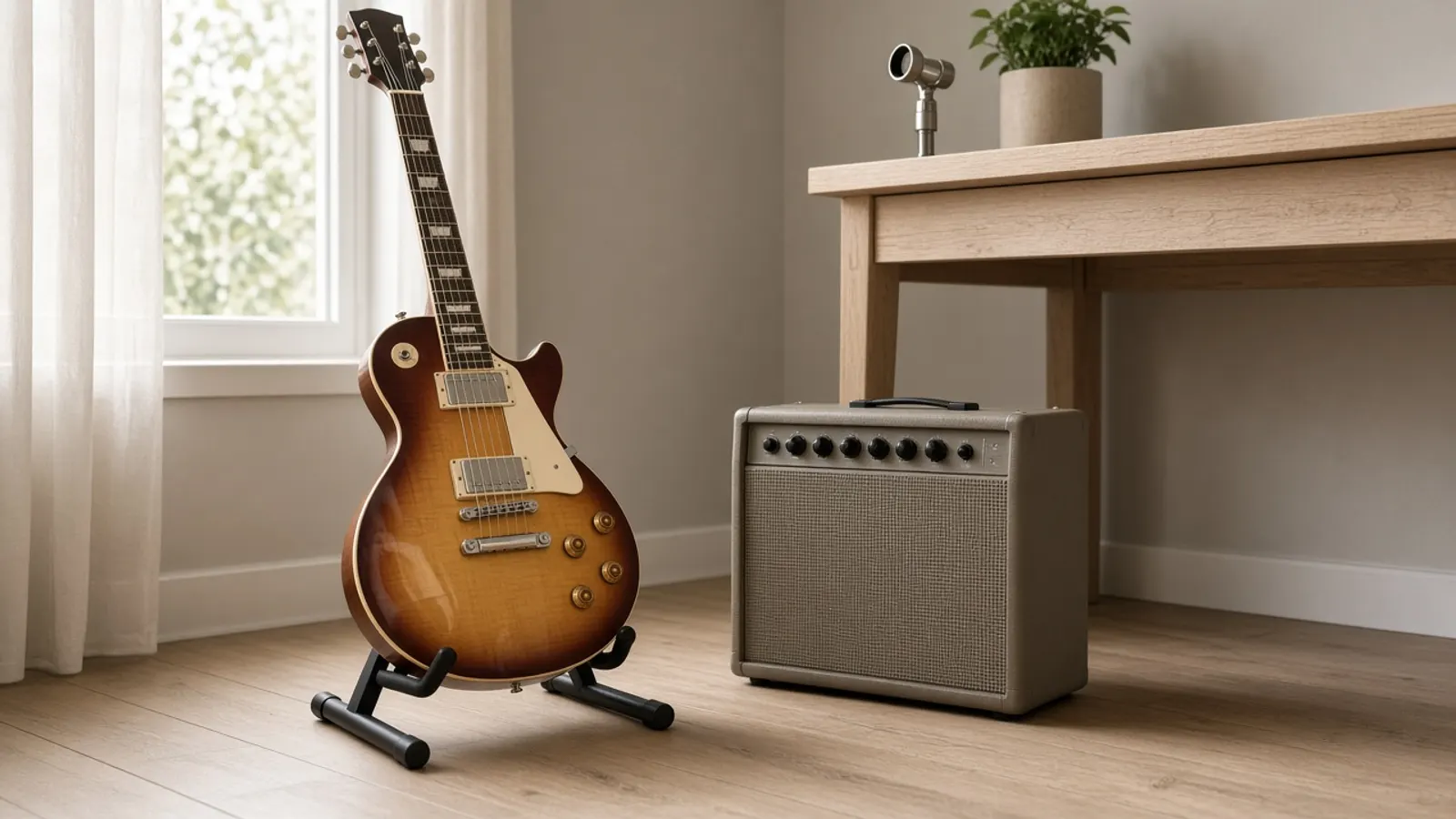
Musicians practising
Take the singer out with the vocal remover and play guitar, piano or bass along with the rest of the band.

Video creators
Use an instrumental from the vocal remover as a quieter bed under speech or voice-over, where you hold the rights to the music.
Teachers and choirs
Make a rehearsal track with the vocal remover so a class or choir can sing the part without the recorded voice leading them.
Why choose Vocal Remover
Credits only for finished results
A task is charged only when it succeeds. If it fails, your credits go back to your balance.
Two tracks, four, or six
By default one separation returns the instrumental and the vocal. Switch to 4 tracks to add bass and drums, or to Local 6 tracks, free on your own computer, for guitar and piano too.
Separation, not a filter
Simple vocal-cancel filters remove sound shared by both stereo channels, which can thin out the rest of the song. The AI model separates the voice from the music instead.
Your results stay private
What Vocal Remover creates stays in your account until you download or save it.
Explore more tools
Every SampLab Pro tool is one click away.
AI creation


Edit audio







How to use Vocal Remover
- 1

Add your song
Upload a file or pick a recording from your library. Common audio formats are accepted: up to 50 MB and 6 minutes on Free, up to 200 MB and 15 minutes on paid plans.
- 2
Remove the vocals
Press the button. The vocal remover returns the instrumental and the vocal as two tracks. Switch to 4 tracks to add the bass and the drums, or to Local 6 tracks for six.
- 3
Preview and download the instrumental
Play the instrumental, mute what you do not need, then download it as WAV or take all the tracks as a ZIP.
Remove vocals and keep the music
A vocal remover takes a finished song and separates the singing from everything else, so you can keep the music and drop the voice. The work is done by the same AI separation model as our AI Stem Splitter, so one upload gives you the instrumental and the vocal, and the bass and the drums as well if you choose 4 tracks.
The instrumental is the track most people come for. It holds every sound that is not the vocal, including the bass and drums, so it is ready to use as a practice track, a backing track or a bed for your own recording. Because it is taken from a finished mix, a faint trace of the voice can remain on some songs.
What the instrumental contains
The instrumental from the vocal remover holds everything in the song except the lead and backing vocals: drums, bass, guitars, keys and every other instrument. With 4 tracks the drums and bass also come as their own tracks, so the instrumental overlaps with them. To rebuild a mix without the voice, use the instrumental alone; to rebalance the band, use the separate tracks.
Separation is not perfect. Reverb tails, doubled harmonies and very quiet vocal layers can leave faint traces behind, so listen to the result before you use it.

Getting a cleaner result
To get a cleaner result from the vocal remover, start from the highest-quality file you have. A full-quality WAV or a high-bitrate MP3 gives the model more detail than a low-bitrate copy. Songs with a clear lead vocal usually separate more cleanly than dense mixes with heavy reverb or stacked harmonies.
If you only need one section of a song, trim it first with Audio Cutter. A separation costs 9 credits per minute (minimum 36), charged only when it succeeds.
What happens to your song
With Cloud Standard, your browser turns the song into an MP3, which is stored privately under your account and sent to WaveSpeed, a third-party AI platform, to make the tracks. With Local 6 tracks, the song never leaves your browser.
The uploaded song and the tracks stay private to your account for 7 days and are then deleted automatically. We do not use your audio to train models, and nobody at SampLab Pro listens to it. Saving a track to your library is a separate step that you choose, and library files are kept for 180 days. The Privacy page has the details.
AI separation compared with phase cancellation and Spleeter
The old trick for removing vocals is phase cancellation. It subtracts one stereo channel from the other, which only removes sound that is exactly the same in both channels. The voice is usually in the centre, but so are the bass and the kick drum, and reverb stays behind, so the result is thin and often still has the voice in it. It does nothing for a mono song.
AI models learn what a voice sounds like and pull it out of the mix. In the results published by the Demucs project on the MUSDB18-HQ test set, Hybrid Transformer Demucs (fine-tuned, four sources) reaches an average signal-to-distortion ratio (SDR) of 9.0 dB, against 5.9 dB for Spleeter, an earlier and widely used model. A higher number is better. The figures come from the Demucs README and from Rouard, Massa and Défossez, "Hybrid Transformers for Music Source Separation" (ICASSP 2023). They describe those models on that dataset, not this page: Local 6 tracks runs a Demucs model whose authors call the six-source version experimental, and Cloud Standard uses a different third-party model, so your own results will differ.
What it cannot do
This page separates a recording into tracks. It does not change the key or the tempo of a song. Backing vocals count as part of the vocal, so they go to the vocal track together with the lead voice, and the lead and the backing cannot be split. Faint traces of other sounds can stay on any track, especially with reverb or a dense mix.
It works on audio files that you upload or pick from your library. It cannot take a link, so you cannot paste a YouTube address. Use a file that you own or have permission to use.
Ready to try Vocal Remover?
Add a song at the top of this page to get its instrumental. A separation costs 9 credits per minute (minimum 36), charged only when it succeeds.
Open Vocal RemoverVocal Remover FAQ
What does a vocal remover do?
A vocal remover splits a finished song into its vocal and the music behind it. Here you get the instrumental without the singing, plus the vocal as a separate track, and the bass and drums too if you choose 4 tracks.
How do I remove vocals from a song?
Upload the song, press the button and wait for the result. When it is ready, play the instrumental, then download it as WAV or take all the tracks in a ZIP.
Will the vocal be completely gone?
Not always. Separation is not perfect, and faint traces of the voice, such as reverb or backing harmonies, can remain. Preview the instrumental before you use it.
How many credits does the vocal remover use?
Each task costs 9 credits per minute (minimum 36). Credits are charged only when a task succeeds; if it fails, they go back to your balance.
Which files can I use with the vocal remover?
Common audio formats. Free accounts can use files up to 50 MB and 6 minutes long; paid plans up to 200 MB and 15 minutes. The file is prepared in your browser before it is uploaded.
Is this vocal remover the same as the AI Stem Splitter?
Yes. This page runs the same separation tool and offers the same track options as the AI Stem Splitter, but starts on 2 tracks and puts the instrumental first.
Can I use the vocal remover's instrumental in my own releases?
The tool only separates audio. Whether you may publish or earn from the instrumental depends on your rights to the recording and the composition, so use songs you own or have permission to use.
Is this the official Demucs?
No. SampLab Pro is an independent service and is not affiliated with Meta or the Demucs authors. The Local 6 tracks engine runs the open-source HT-Demucs model in your browser. Cloud Standard uses a different third-party model through WaveSpeed. The Licensing page lists both.
Can I paste a YouTube link?
No. SampLab Pro only separates audio files that you upload or pick from your library. It does not download from YouTube or other sites. Use a file that you own or have permission to process.
Can I use the stems commercially?
The rights in a recording stay with its owner, and separating it gives you none. We do not promise that stems are cleared for commercial use, so use songs you own or have permission to use. The Licensing page explains the open points.
What happens to my upload?
Cloud Standard sends the audio to WaveSpeed to make the tracks, and Local 6 tracks never leaves your browser. Uploaded audio and tracks stay private to your account for 7 days and are then deleted automatically. We do not use them to train models, and nobody at SampLab Pro listens to them.