Chord export
Export a Chord Progression as JSON or a Lead Sheet
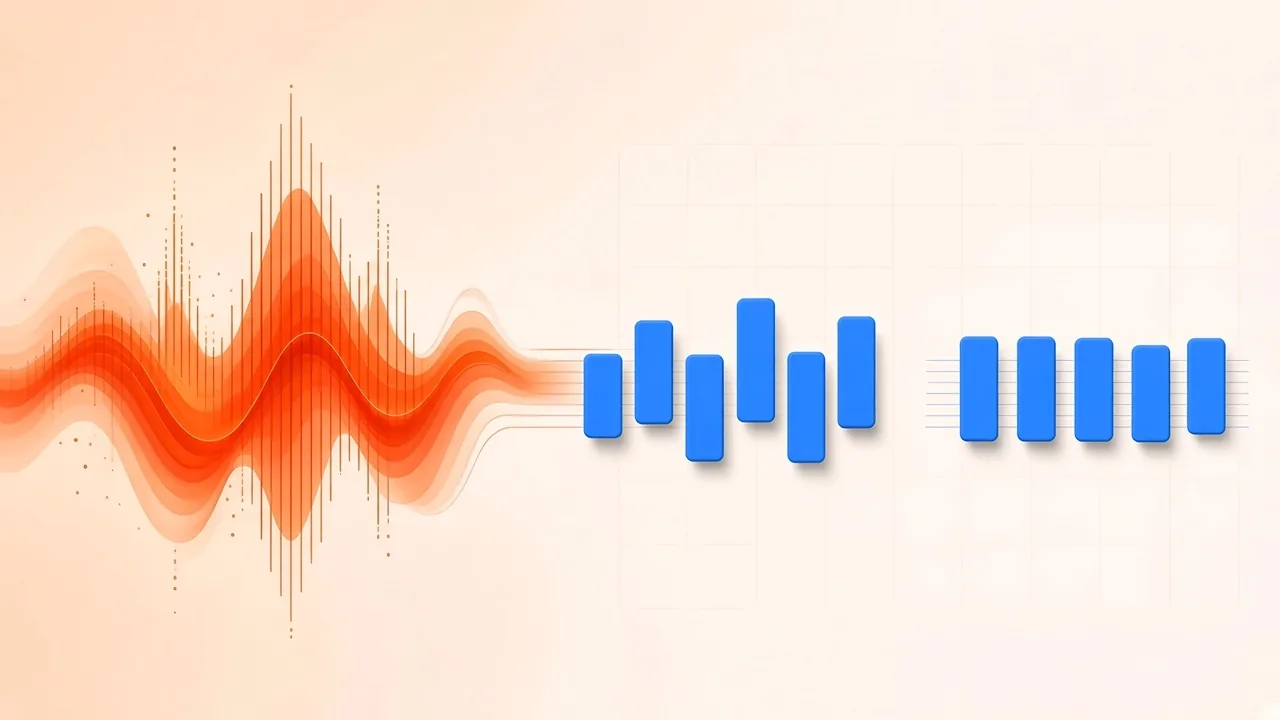
Exporting a chord progression as JSON or as a lead sheet is a paperwork problem: you want a list you can keep, share or drop into notes, and sometimes a readable one-staff chart. It is not the same job as training your ear to name changes in real time. If you need that listening method—finding the key, following the bass, testing major against minor—start with how to find the chords of a song and come back when you are ready to capture what a detector or a MIDI file can put on disk.
This article stays on two browser tools and the gap between them. Chord Finder estimates a progression from audio and lets you download the list as JSON. MIDI to Sheet Music drafts a lead sheet from a .mid file and exports PDF or MusicXML. The finder page points to the lead-sheet tool as a next step if you already have a MIDI version of the song. It does not document an automatic import of that JSON into the staff writer. Treat the two downloads as files you move yourself.
Only analyse recordings and MIDI you own or have permission to use.
What Each Export Is For
A chord progression is a sequence of harmony over time. The useful export is not a single label for “the whole song,” but a timed list you can check against the recording.
A lead sheet is a compact working chart: typically a melody on one staff, chord symbols above it, and lyrics when they exist. The generator on this site drafts the first of those ideas from MIDI—notes merged onto one staff, with optional basic chord names—and does not transcribe lyrics. That matches a rehearsal sketch more than a published fake-book plate.
JSON from Chord Finder is for session notes, software you already use, or your own records. The live page describes the download as “the chord list as JSON” and “a JSON file for your notes.” It does not publish a field-by-field schema on that page, and this article will not invent key names, types or nesting. After you download a file, open it and read the actual keys your browser saved. Do not assume another SampLab tool will parse them for you.
PDF and MusicXML from the lead-sheet page are for reading and for handing a draft to notation software. MusicXML 4.0 is the interchange format; handbooks such as MuseScore’s notes on working with MusicXML files treat an import as a starting point that often still needs cleanup.
From Audio to a Timestamped JSON List
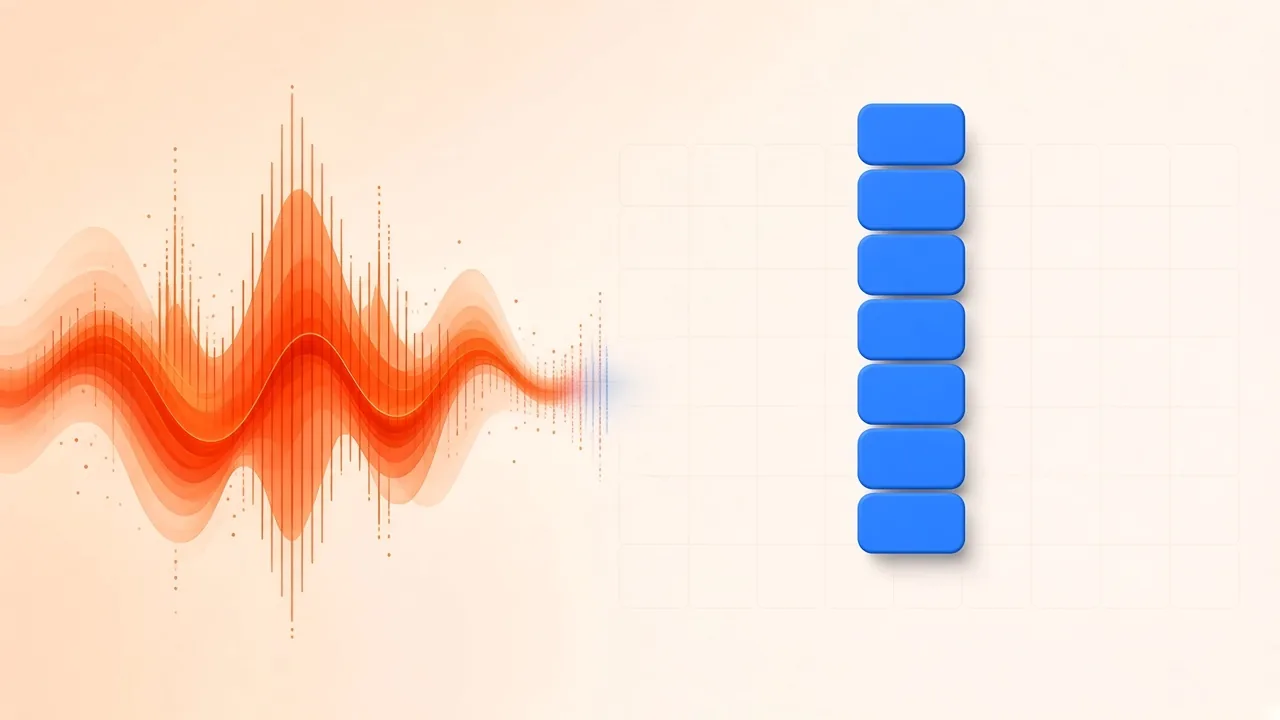
- Open Chord Finder and drop a file you may analyse. The page accepts WAV, MP3, FLAC, OGG and AAC, from about one second to ten minutes and up to 50 MB.
- Run detection. The page states that the tool extracts chroma vectors, matches them to chord templates and smooths the result into a progression. Median smoothing is named on the page as the method that steadies frame-to-frame jumps. Open-source MIR libraries such as Essentia implement related chroma and chord-analysis ideas in research code; that is background for how automatic detectors work in general, not a claim about which library this page runs.
- Read the on-screen list. Each detected change appears with a timestamp, not as one label for the entire file.
- Check the labels by ear at the busiest section. The tool estimates major, minor and diminished triads and common major-seventh, minor-seventh and dominant-seventh chords. It does not support ninths, higher extensions or bass inversions. Dense mixes can still mislabel a change that your ear hears clearly.
- Download the progression as JSON if you want a file to keep with your notes.
The analysis runs in the browser. Files stay on your device unless you save a result, which requires an account.
If a section is wrong, do not invent extra chord types the detector cannot name. Mark the measure in your notes, or fall back to the ear-training article linked above. You can also confirm tempo and key of the same recording in BPM Finder when the question is “where is the tonic?” rather than “what is the symbol at 0:37?”
From MIDI to a Draft Lead Sheet
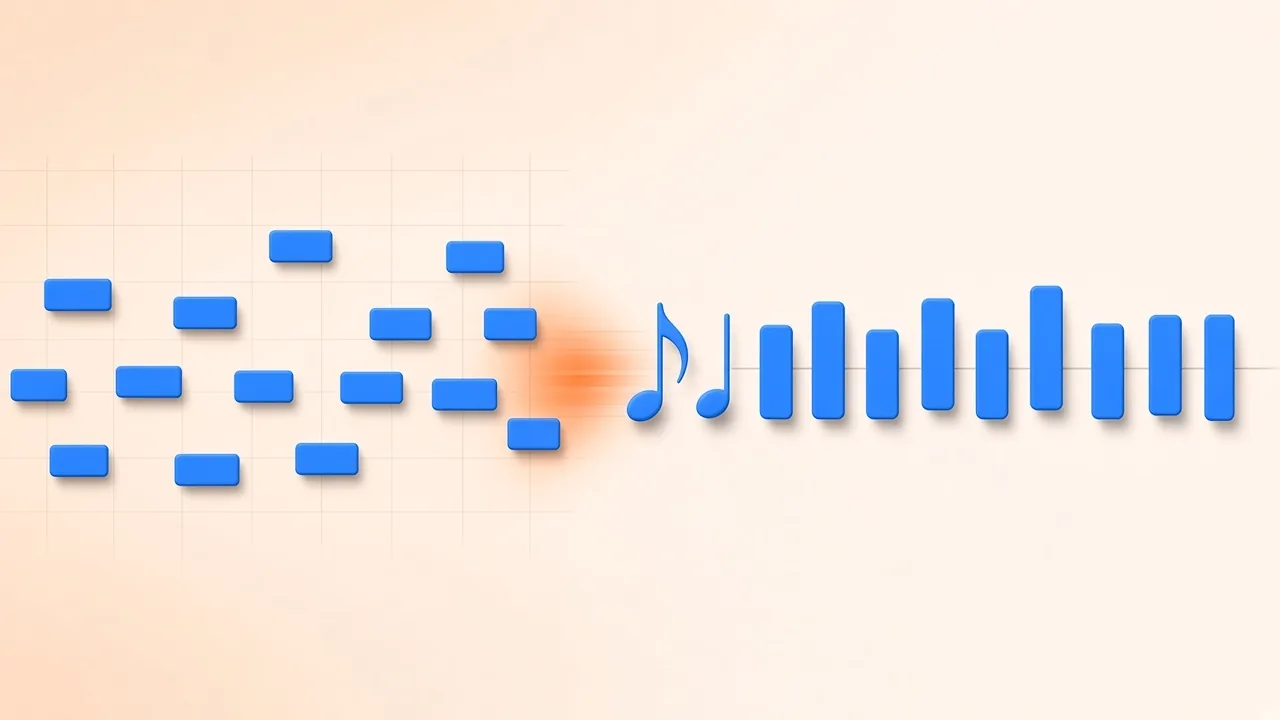
A JSON chord list is not a staff. To get a printable sketch you need a Standard MIDI File. The MIDI Association’s overview of MIDI files is the format definition; the lead-sheet page asks for a .mid up to 50 MB, up to about ten minutes or 20,000 notes.
If you already have that file—from a DAW export or a MIDI arrangement—drop it on MIDI to Sheet Music. If you only have audio, you must obtain or create a MIDI version first. The site’s WAV-to-MIDI and audio-to-MIDI tools exist for that conversion; they are a separate step, not a hidden button inside Chord Finder. After pitches exist as MIDI, you can clean notes in the MIDI editor before you ask the lead-sheet page to draw them.
What the lead-sheet page actually draws:
- All pitched notes merged onto one staff, with standard clefs and accidentals, in a C key signature.
- Optional basic chord labels (major, minor and diminished) analysed from note clusters if you turn that display on.
- Bar lines that follow the time signature and tempo markers in the file.
- Meters the page can handle: 2/4, 3/4, 4/4 and 6/8, still written in C.
- Export as monochrome print, PDF, or MusicXML.
What it does not claim: lyrics, transposition for a singer’s key, publication-ready engraving, every meter or key, or an automatic merge of Chord Finder’s JSON onto the staff. The page describes the output as an unengraved draft. Check it on screen, then export.
If the optional chord names disagree with the JSON you saved from the audio detector, that disagreement is expected. One file came from an audio chroma match; the other from MIDI note clusters. Prefer the listening test, and copy symbols by hand if you need them to match.
A Manual Path Between the Two Files
A practical session looks like this:
- Analyse the audio you are allowed to use and download JSON for your notes.
- If you need a staff, prepare a MIDI version of the same song (already on disk, or converted and edited separately).
- Generate the draft lead sheet, optionally with basic chord labels.
- Compare three things: the recording, the JSON timestamps, and the staff. Correct symbols in your notation program after you import MusicXML, or keep JSON as the harmonic record and the PDF as the pitch sketch.
There is no documented “send JSON to lead sheet” control to wait for. Writing the hand-off as if it were automatic would invent a feature.
Frequently Asked Questions
Can I export a chord progression as JSON? Yes. After Chord Finder lists timestamped labels, download the progression as a JSON file for your notes. Open that file to see the fields it actually contains; this page does not republish an unofficial schema.
Does that JSON become a lead sheet by itself?
No. The lead-sheet tool reads a .mid file and can add optional major, minor and diminished labels from MIDI note clusters. You carry files between the tools yourself.
What chords can the audio detector name? Major, minor and diminished triads, plus common major sevenths, minor sevenths and dominant sevenths. Ninths, higher extensions and bass inversions are outside its labels.
What does the lead sheet export? PDF and MusicXML, after an on-screen draft. MusicXML is for other notation software. The draft stays in C, without lyrics, and is not described as publication-ready.
Do I need to sign in? Not only to run either browser analysis. You need an account to save results to your library.
Should I skip listening because I have a file to export? No. Automatic labels miss extensions, inversions and busy mixes. Use the export as a draft and confirm it against the recording—or against the ear-based method in the chords guide.