Guitar tab from audio
Audio to Guitar Tab Converter Free (Browser Guide)
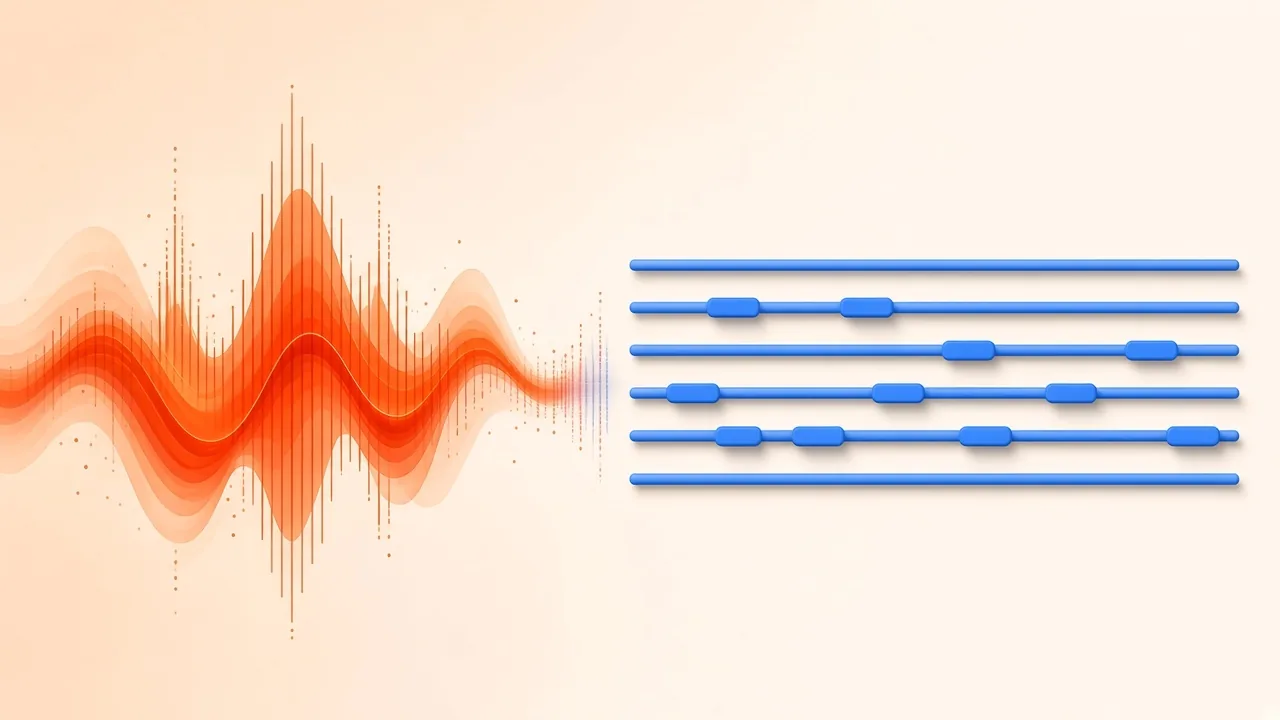
You heard a riff and want the frets under your fingers. Maybe it is a friend's demo, a rehearsal recording, or a melody you hummed into your phone—and searching tab libraries turns up nothing useful, or three conflicting versions in the wrong key. An audio to guitar tab converter free to run in the browser closes that gap: it listens to the recording, estimates pitches and timing, and writes tablature (string and fret positions) you can edit before you print or open the file in a tab editor.
This guide covers why library tabs often fail for obscure material, how automatic transcription actually works, a practical SampLab Pro workflow (including when to separate the guitar first), cleanup habits that save practice time, and honest limits so you know what still needs your ears.
Why Published Tabs Leave Gaps
Community tab sites depend on someone taking the time to write a song by ear. Popular catalog tracks get coverage; local bands, one-off live takes, wedding arrangements, and brand-new demos usually do not. Even when a chart exists, you may see missing sections, odd voicings, or a key that matches a YouTube cover rather than the file you have.
Automatic transcription does not replace a careful human chart for a complex solo, but it gives you a draft tied to your audio instead of a stranger's guess about a different mix.
How Audio Becomes Guitar Tab
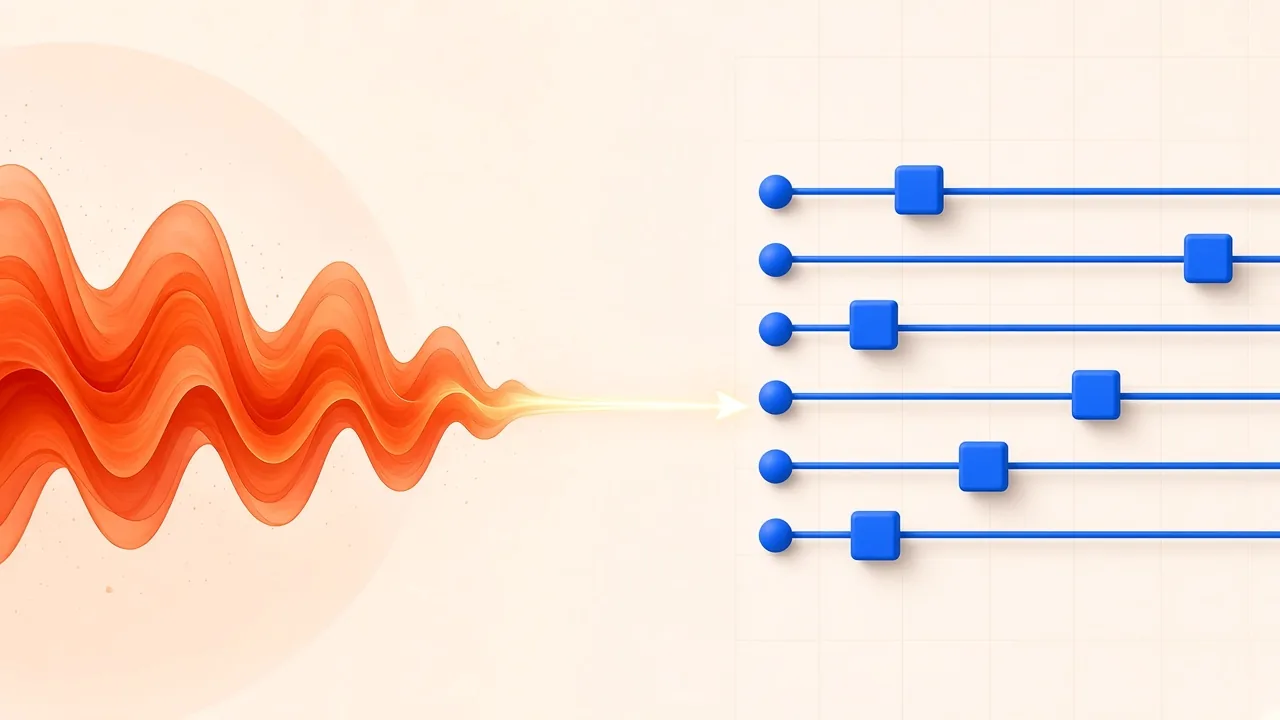
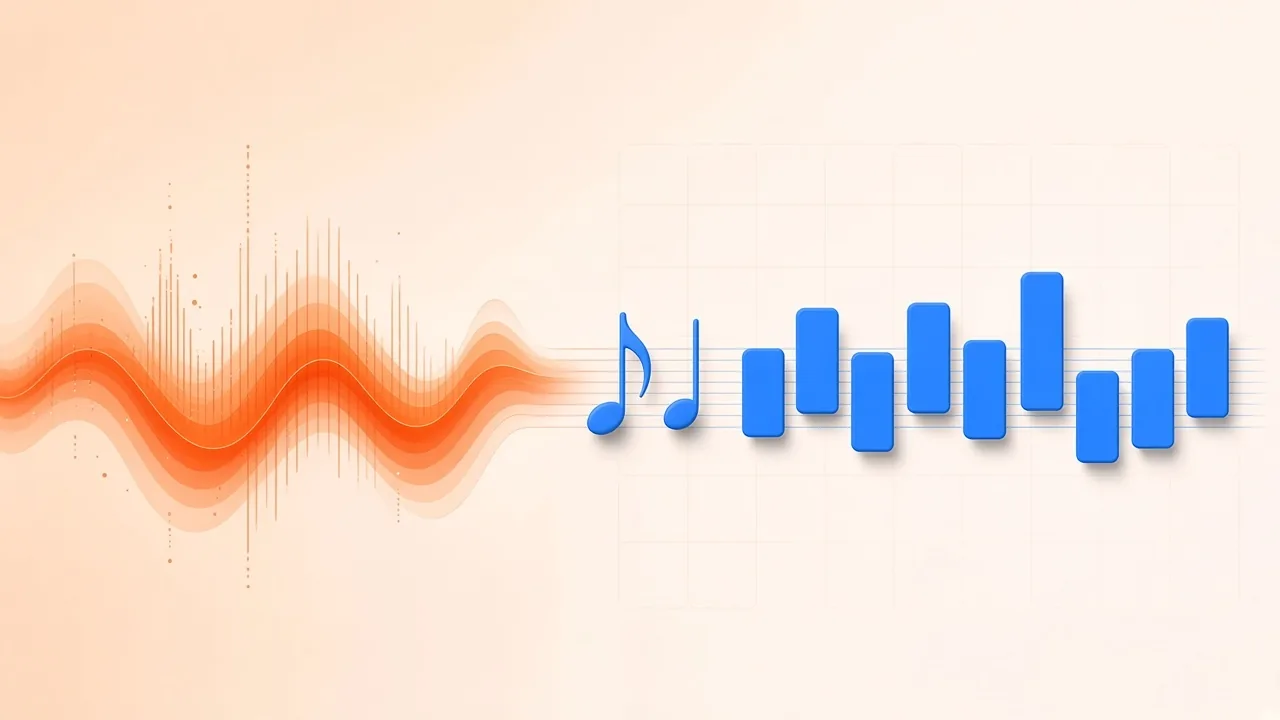
Automatic music transcription is a long-running research topic: detect pitches and onsets, then map them onto a playable representation. For guitar, that representation is usually six-line tab plus optional standard notation.
Two ideas matter in practice:
- Cleaner input helps. Source separation research—for example the open Open-Unmix reference that splits pop mixes into vocals, drums, bass, and other—shows why isolating the guitar (or working from a solo take) beats feeding a full band into a note detector.
- Pitch first, frets second. Models such as Spotify's open-source Basic Pitch (described in the instrument-agnostic transcription paper) estimate notes across instruments. Turning those pitches into specific string/fret pairs is a second mapping step: the same E can live on multiple strings, so a draft may need hand-friendly edits.
Benchmark tooling treats a note as correct when onset is within about ±50 ms and pitch within a quarter tone (mir_eval). Use that as a mental standard: a tab that “looks busy” can still feel late or sharp when you play along.
A Browser Workflow That Stays Honest
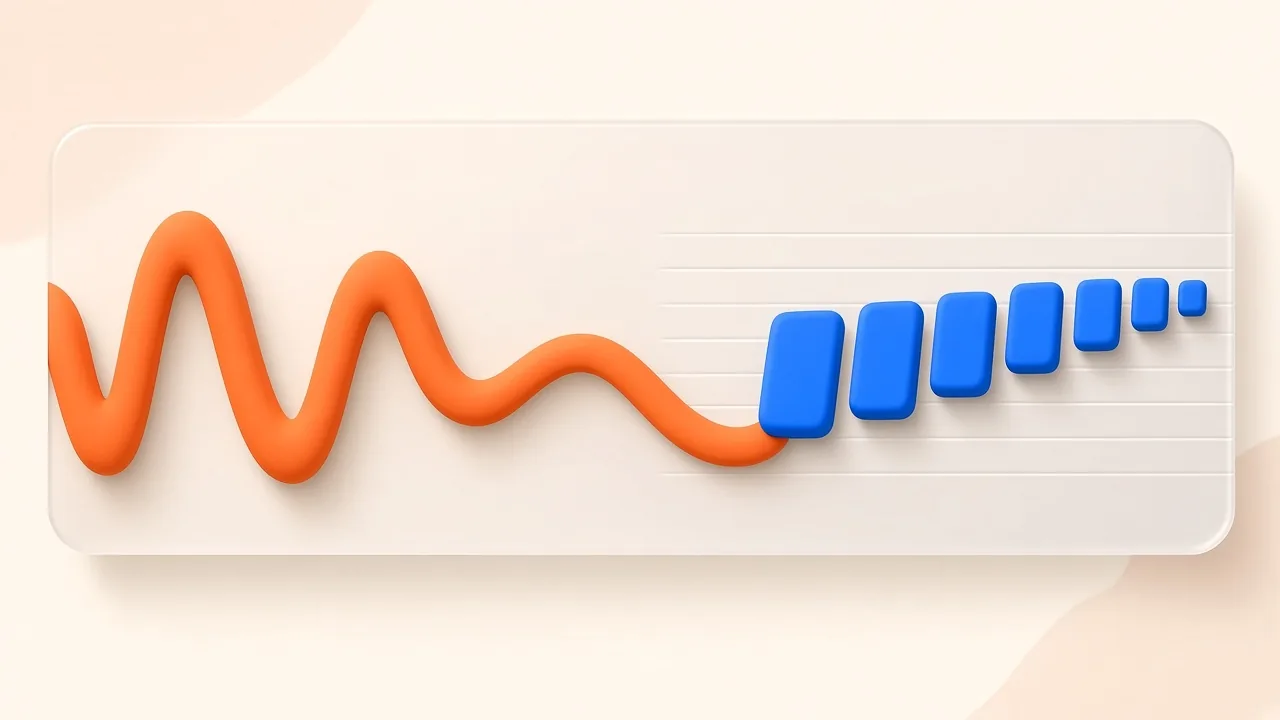
SampLab Pro's Audio to Sheet Music tool includes a Guitar (tab) mode. It runs in your browser, keeps the audio on your device for that transcription, and lets you edit and export without turning the draft into a black box. The tool is free to use, and Guitar (tab) mode on a single recording needs no account; sign-in is only needed to save results or to use Multi-instrument mode. Confirm you own the audio or have permission before each run.
Step 1: Start from the clearest guitar signal
- Best case: a dry solo guitar take (practice amp or DI).
- Good case: a mix where the guitar is loud and fairly dry.
- Hard case: a dense production with doubled guitars, heavy distortion, and cymbals.
For hard cases, isolate first with the AI Stem Splitter (cloud or local engines; the Local 6 tracks mode, which requires sign-in, can pull a guitar stem on your device). Shorter clips are easier to judge—trim with the Audio Cutter if you only need eight bars.
Step 2: Run Guitar (tab) mode
Open Audio to Sheet Music, choose Guitar (tab), add MP3, WAV, M4A, FLAC, or OGG (up to 10 minutes), or record with the mic. The first run downloads model files once. When the draft appears, you get notation with tablature you can play back with cursor, speed control, and loop.
If you need a wider overview of piano, vocal, and bass modes on the same tool, see our guide on converting audio to sheet music.
Step 3: Proof by ear before you trust frets
Loop a phrase. Ask: are note starts late? Did a bend become two fretted pitches? Did the model park everything on one string? Distorted tones and palm mutes create extra spectral energy that looks like extra notes—delete ghosts early.
Step 4: Fix notes in the tool, fingering in your tab editor
Inside the editor, click a note to change its pitch or length, tie it, or delete it—enough to fix octave jumps and simplify rhythms that were sliced too finely. Identical pitches can still land in awkward positions; after you export, reassign strings and frets to a fingering that suits your hand in Guitar Pro or TuxGuitar. For MIDI-style drag editing of the same material, open the file in the MIDI Editor.
Step 5: Export where you practice
Download what matches your toolkit:
- PDF — print or share quickly.
- MIDI — drop into a DAW or editor.
- MusicXML — continue in a scorewriter.
- Guitar Pro — open in Guitar Pro or other GP-compatible software; free editors such as TuxGuitar can also open Guitar Pro and MIDI files for multi-track tab work.
Tips That Improve Tab Drafts
- Prefer higher-quality source files when you have a choice; muffled phone recordings of a distant amp are the hardest case.
- Clean acoustic or mildly overdriven tones transcribe more cleanly than walls of high-gain distortion.
- Check tuning. If the recording is in drop D or a capo'd key, fret numbers may need a global rethink even when relative intervals are right.
- Transcribe a short section first, lock the feel, then expand.
- Alternate tunings and heavy legato/slide vocabulary still need human judgment after the draft.
What This Path Is Good For
Use it when you need a starting chart for your own demos, rehearsal recordings, covers you have rights to learn from, or parts that never appear in public tab libraries. Pair it with stem separation when the guitar is buried, and with chord tools when you care more about the progression than every fret—see how to find the chords of a song and the free Chord Finder.
For bass lines instead of six-string parts, the same Audio to Sheet Music page offers Bass (tab) mode, and stem separation explains why isolating low end first changes everything.
Frequently Asked Questions
Is there an audio to guitar tab converter free to use online?
SampLab Pro's Audio to Sheet Music tool, including Guitar (tab) mode, is free to use in the browser. Signing in is only needed to save results. Always confirm rights to the audio before you process it.
Do I need to isolate the guitar first?
Not for a solo take. For full songs, yes—separation (or Multi-instrument mode on the same tool, which requires sign-in) usually beats dumping the whole mix into tab mode.
Will the frets match how a human would finger the part?
Not always. Models propose pitches; comfortable fingering is your edit. Expect to move notes across strings after exporting to Guitar Pro or TuxGuitar.
Can I open the result in Guitar Pro?
Yes. Export the Guitar Pro file from Audio to Sheet Music, then open it in Guitar Pro or a compatible editor such as TuxGuitar.
How accurate is automatic guitar tab?
Solo, dry, in-tune playing fares best. Dense mixes, heavy distortion, and expressive playing create more errors. Treat the output as a draft and proof it against the recording—the same habit you would use with any automatic transcription.
Can I tab songs I do not own?
Only with permission. The tool requires you to confirm ownership or authorization before each run.