AI instrumental
AI Instrumental Background Music for Videos
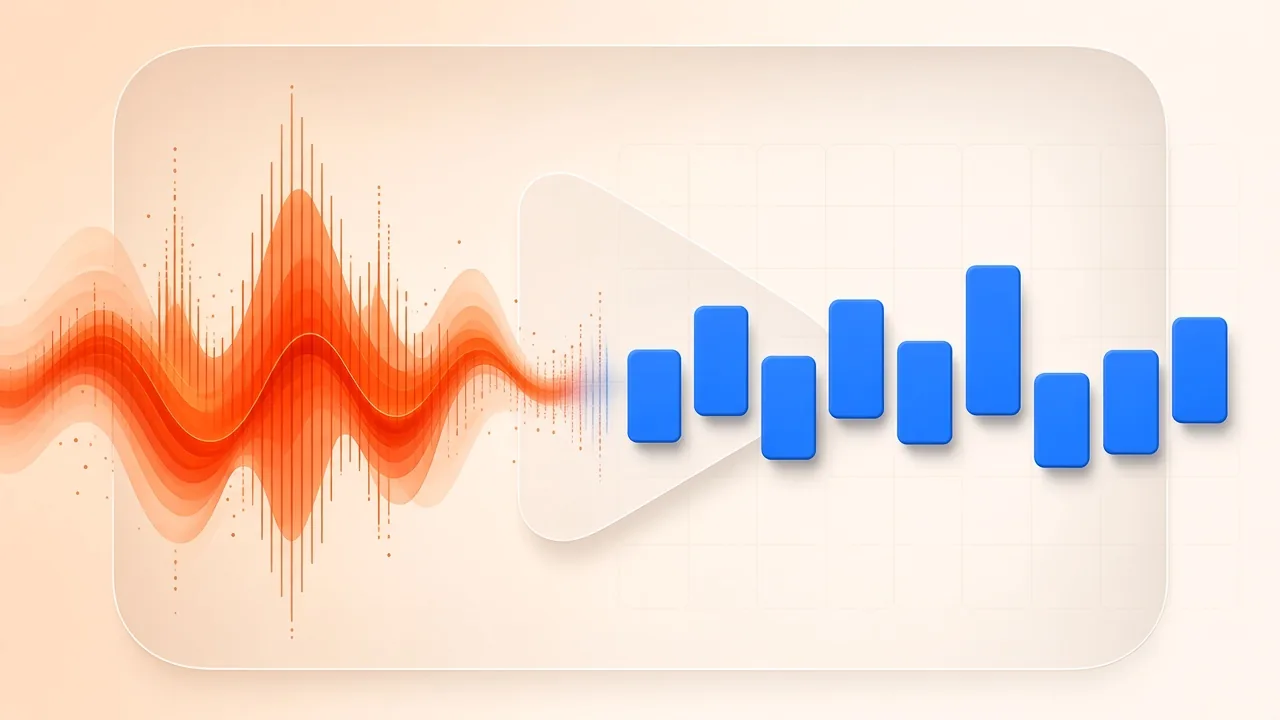
AI instrumental background music for videos is a scoring habit, not a treasure hunt for the most impressive demo. You describe the mood, energy and instruments the picture needs, generate a lyric-free take, and then judge that file under the footage and the voice—not as a standalone song. A hook that delights on headphones can steal attention from an instruction; a plainer pulse may let the viewer follow the work on screen.
This walkthrough uses AI Music Generator in Instrumental mode. It is not a roundup of generators—that comparison lives in best free AI music generators. It is not the path for turning finished words into a sung track, which is how to turn lyrics into a song with AI. Here the vocal should stay out of the way because the video already has something to say.
Sign in before you generate. Results stay with your account until you download or save them. Do not paste a description that asks the system to imitate a specific artist’s identity, and do not treat a generate button as a licence.
Decide What the Music Must Do for the Picture
Start from a rough cut or a written sequence, not from a genre name. Mark the spoken sections, the stretches of demonstration or B-roll, and the ending. Those marks tell you where the track can add motion and where it should recede.
Imagine a short flower-arranging demonstration: a spoken introduction, several narrated steps, and a hold on the finished bouquet. A gentle, steady direction can support the hands without arguing with the explanation. A dramatic swell in the middle of a quiet sentence usually does the opposite. Some shots are clearer if you leave them dry, with no generated bed underneath. Silence, or the room sound you already recorded, is a valid choice.
Write the job in audible terms before you touch the generator:
- Purpose. Support the action, cover a transition, or sit under titles—pick one primary job.
- Energy. Calm, forward, tense or celebratory, and how much that energy is allowed to change.
- Instruments. A small set you can actually hear for (soft guitar and light percussion is clearer than “cinematic orchestra unless it gets in the way”).
- Melody. Present but not soloistic if speech matters; more sung-like only if the picture is silent.
- Vocals. None. That is why Instrumental mode exists.
- Ending. A relaxed settle, a clean cutoff, or a fade you will create later in the edit.
A label like “pro-sounding underscore” will not tell the generator what to play. “Calm guitar, sparse percussion, no singing, space for spoken steps” can be listened for.
Generate an Instrumental Take
- Open the generator and choose Instrumental so the request is music without sung lyrics.
- Describe the sound in the text field (the page counts toward 1,800 characters). Mention mood, pace, instrumentation and the fact that speech needs room. You do not need to fill the box.
- Optionally pick a style tag: Pop, Rock, Hip-hop, R&B, Electronic, Jazz, Folk, Country, Lo-fi, Classical, Ambient, Cinematic, Reggae or Blues.
- Generate and listen once all the way through for surprises: unintended vocals, a harsh midrange, a sudden drop, or an ending that cannot be cut cleanly.
- If the direction is wrong, change one instruction—lighter drums, fewer melodic jumps, a calmer tag—and generate another take. Identical repeats teach you less than a targeted rewrite.
Keep a short note with each candidate: the description you used, the style tag, and what failed on this picture. “Fits the slow hands, but the last phrase needs a trim” is more useful later than “nice.”
The generator can send a keeper to Audio Cutter, to stem splitting, or toward MIDI conversion. For video length, trimming on a waveform is usually the next move: mark an entrance that matches the first shot and an exit that matches the last meaningful picture, then export a working copy. Leave the original generate untouched so you can recover a longer version.
Audition the Track Inside the Edit
Standalone listening only catches defects. Mix listening answers three production questions: can you understand the speech, does the pulse fit the visible motion, and does the ending feel intended?
Place promising takes under the rough cut at comparable levels. In the bouquet example, busy percussion can make careful hand movements feel rushed even when the harmony is pleasant. An ornate lead line can fight every spoken noun. Lowering the fader will not always fix a busy arrangement; you may need a sparser take.
When speech carries the information, keep the music clearly underneath and listen to the joints. Ducking—reducing the music while someone talks—is an editing habit, not a control this generator documents. If you automate a duck, hear whether the track pumps between short words. A more stable bed often beats an aggressive dip.
If the spoken track is hard to parse, repair that recording before you touch the underscore. Repair missing words and harsh edits first, then revisit the balance.
Shape the entrance on purpose. A long musical introduction can delay the reason the viewer opened the video. A sudden full-level hit can feel disconnected from a quiet first frame. Choose an exit that matches the final shot instead of slicing through a phrase. A fade can soften an exit; it cannot repair a phrase that was sliced in the middle.
Review the exported video on headphones and on a small speaker, the way an audience might. Confirm that the intended take is the one that rendered, and archive the dry instrumental beside the finished movie so a recut does not require excavation.
Rights: Read the Office, Then Read the Site Page
A musical work and a sound recording can both be protected once original authorship is fixed (Copyright Office Circular 1). Generating a file does not, by itself, settle who authored the melody or the recording that came back, and it does not mean the result is cleared for every use.
The Copyright Office’s AI overview, the registration guidance for works that contain AI-generated material, and the same policy as issued in the Federal Register (2023-05321) all emphasise human authorship. Material produced by a machine without sufficient human creative control is not registrable as that person’s work of authorship; AI-generated portions should be disclosed rather than claimed. The Office’s Part 2 report on copyrightability examines those boundaries in more detail, including the limits of a prompt standing alone.
What you can describe, if it is true, is the work you actually did: writing a brief, choosing among takes, editing the file to picture, and mixing it under narration. What you should not do is announce that “AI music has no copyright” or that “this output is always mine to sell.” Those slogans are not what the Office documents say.
For what this site publishes about generated tracks, read the licensing page. That page states that the site does not promise tracks made here are cleared for commercial use, and that rights in audio stay with you or with the rights holder. It is not a substitute for the Copyright Office, and this article will not invent extra grants, disclaimers or warranties beyond what that page and the Office materials already say. Keep a record of the description, the date and which take you used if you later need to explain your own contribution.
Do not upload other people’s recordings into later tools unless you have permission to process them.
Frequently Asked Questions
How do I make instrumental background music for a video here? Sign in, choose Instrumental, describe the mood and instruments the picture needs, generate a take, audition it under the voice and picture, then trim a working copy to length.
Why not use the lyrics mode? Lyrics mode is for hearing words you already wrote. Background scoring for speech usually fails when a second voice arrives. Use the lyrics workflow only when the song is the content.
What should I write in the box? Audible choices: purpose, energy, a few instruments, how bold the melody may be, and that you need room for speech. Avoid asking for a copy of a famous track.
Does the generator automatically duck under dialogue? No. Balance and ducking happen in your editor. Generate a stable instrumental, then ride the level against the voice.
Can I assume the track is cleared to monetise? No. Read the Copyright Office guidance linked above and the site’s licensing page. The licensing page does not promise commercial clearance. This article does not add a licence the page does not grant.
How do I match the video’s length? Trim the generated file in Audio Cutter or in your editor. Keep the uncut take so you can recut later.