MIDI to WAV
How to Convert MIDI to WAV Online
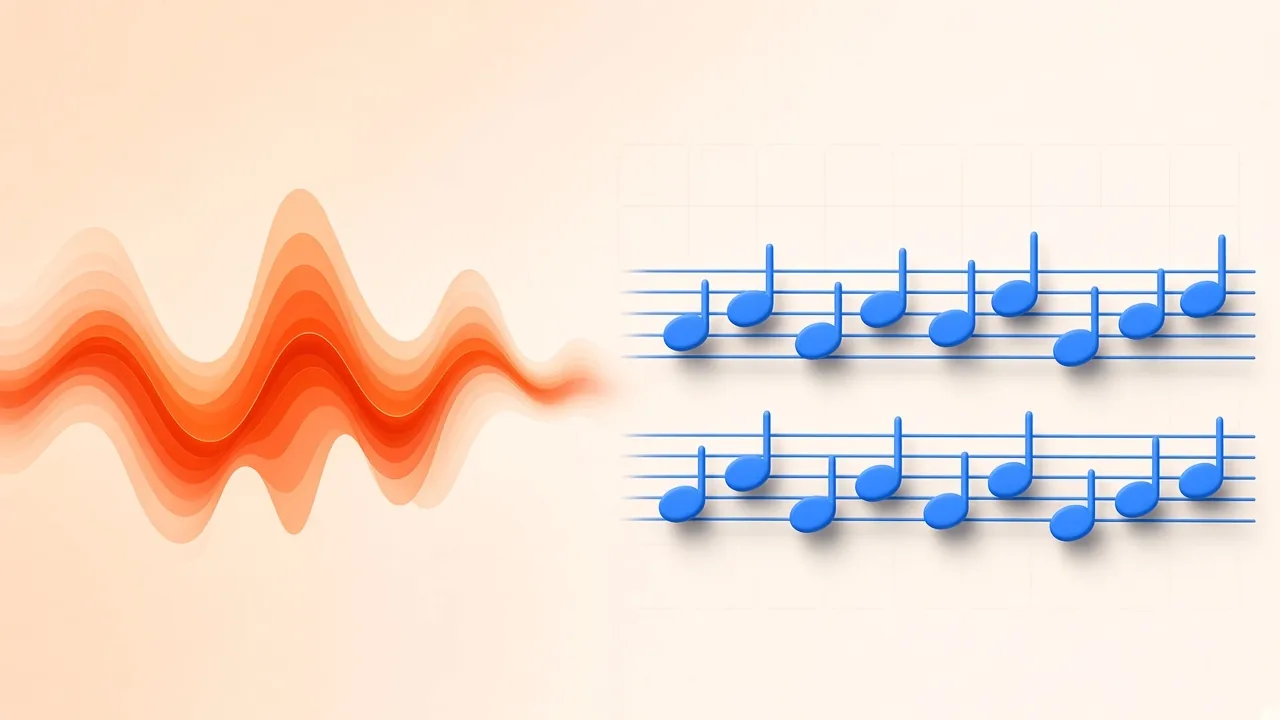
A MIDI file is a list of performance instructions, not a recording. The MIDI Association describes Standard MIDI Files as an interchange format for notes and control data; MIDI itself carries pitches, timings and velocities rather than a waveform. That is why a .mid sketch is silent until something synthesizes it. A MIDI to WAV converter is the missing step: it plays those events through a voice and writes ordinary audio you can drop into a DAW, a video timeline, or a practice app.
You do not have to install a workstation, hunt for a SoundFont, or learn a command-line synthesizer to hear the file. SampLab Pro's MIDI to WAV converter runs in the browser, reads Type 0 and Type 1 .mid files, renders the notes with one of three oscillator voices, and downloads an uncompressed stereo WAV. This guide explains why WAV is the right container for further work, how the conversion actually happens, what the tool can and cannot do, and when you should move the same file into a full instrument library instead.
Why a WAV File Beats an MP3 Preview
WAV is a RIFF container that commonly stores uncompressed linear PCM. Every sample the renderer produced is kept, so later edits—time-stretching, pitch-shifting, EQ, or another encode—start from a complete waveform. A compressed listen file such as MP3 discards data to save space. That is fine for sending a finished bounce, and a poor choice as an intermediate: every extra encode throws more of the waveform away.
Production and broadcast workflows treat lossless WAV as the exchange format for that reason. BBC Research & Development documents Broadcast WAV as a professional container built on the same family, used when the file still has a life after the first bounce. If the audio is heading into Logic, Ableton, Premiere, or an archive, the extra size is the point.
SampLab Pro's converter exports only that uncompressed stereo WAV. There is no MP3 option on the page, and that is deliberate: the file is meant as a preview or a starting bounce, not a compressed delivery master.
What a Browser Render Does—and What a SoundFont Does
People often search for “MIDI to WAV with SoundFont” because sampled instrument banks are how desktop players recreate pianos, strings and drums. A SoundFont file packages recorded instrument samples for sequenced playback (the common .sf2 container). That approach is sample-based synthesis: the starting waveforms are captured instrument sounds rather than oscillator tones. Rendering a MIDI file against such a bank is powerful, and it also means you must obtain, install and assign a sound set before you hear anything.
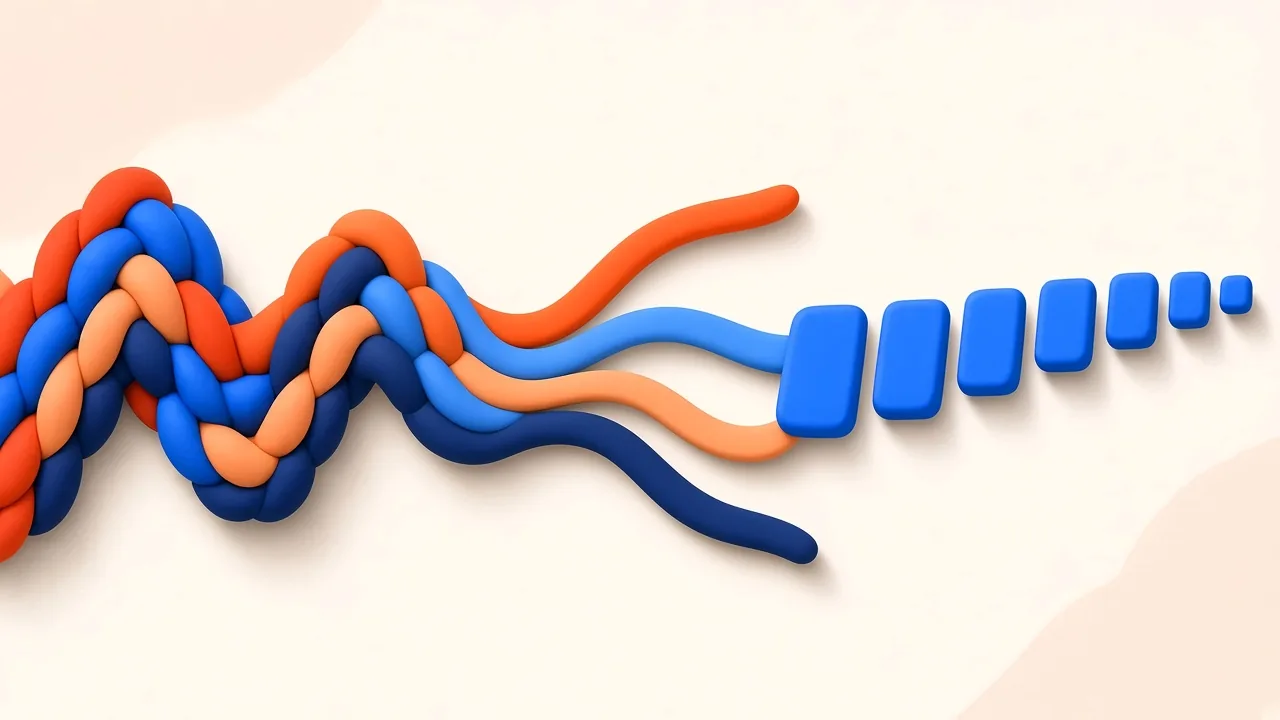
The SampLab converter takes the other path. It uses three built-in oscillator voices—Piano-like, Synth and FM—rather than sampled libraries or General MIDI program changes. The page is explicit: the renderer does not use sampled soundfonts, per-track voices, continuous controller (CC) messages, pitch bend, sustain pedals or program changes. One voice plays the entire sequence. That is a limitation you should know before you export, and it is also why the tool can run quickly in a tab without downloading multi-gigabyte instrument packs.
Use the browser render when you need to audition timing, check an arrangement, share a self-contained sketch, or hear a file on a machine that does not have your plugin collection. Open a DAW with real sampled instruments when you need expression curves, realistic pianos, separate tracks, panning, or a polished mock-up.
Render the Sequence in Your Browser
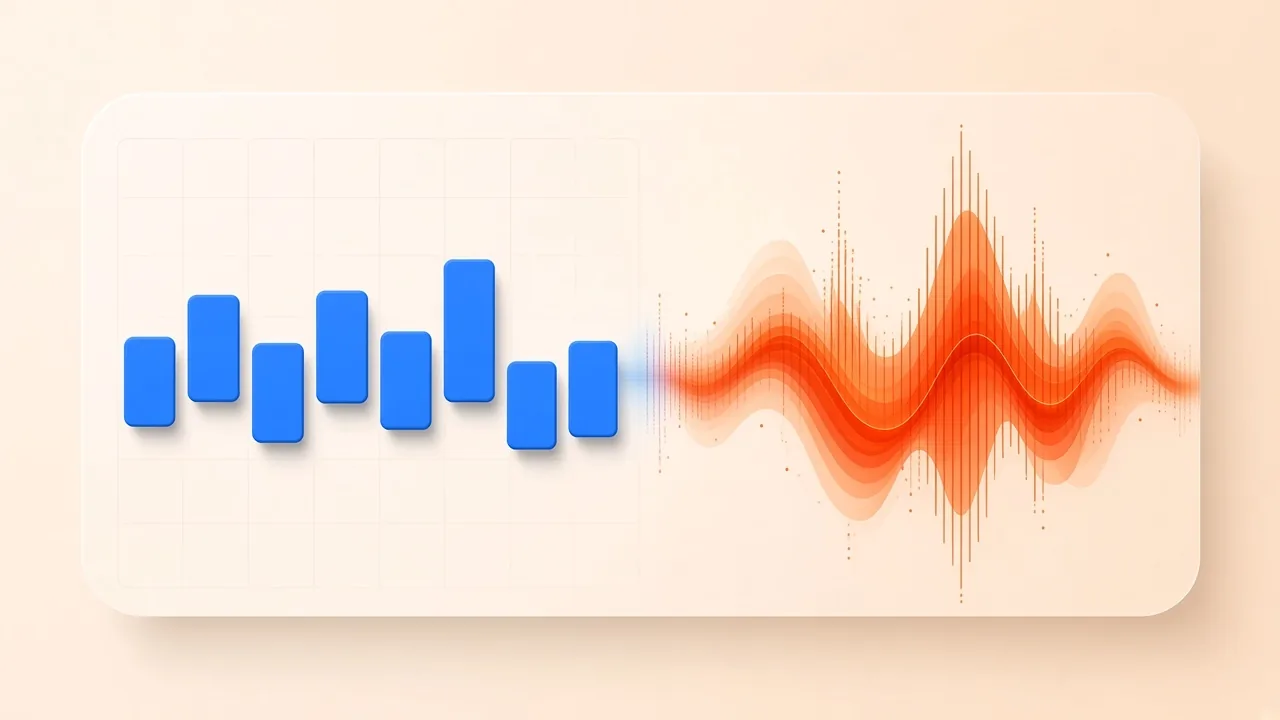
- Open the MIDI to WAV converter and drop in a
.midfile of up to 50 MB. The tool accepts sequences up to 10 minutes long or up to 20,000 notes. Notes, velocities and tempo changes are read in the browser. - Choose a voice: Piano-like, Synth or FM. The same voice plays every channel together into one stereo image, which is enough to judge pitch, rhythm and how dense the arrangement is.
- Render and download the stereo WAV. Parsing, timing and synthesis stay in your browser session; neither the MIDI events nor the finished audio are sent to a server. You can use the converter without an account. Sign in only if you want to save the result to your library.
If notes look wrong before you bounce—octaves that jumped, durations that feel late, velocities that sit too hot—fix them first in the free MIDI Editor, then render again. Editing the instructions is cheaper than trying to repair a bounce that already baked the mistakes into PCM.
What the Downloaded File Contains
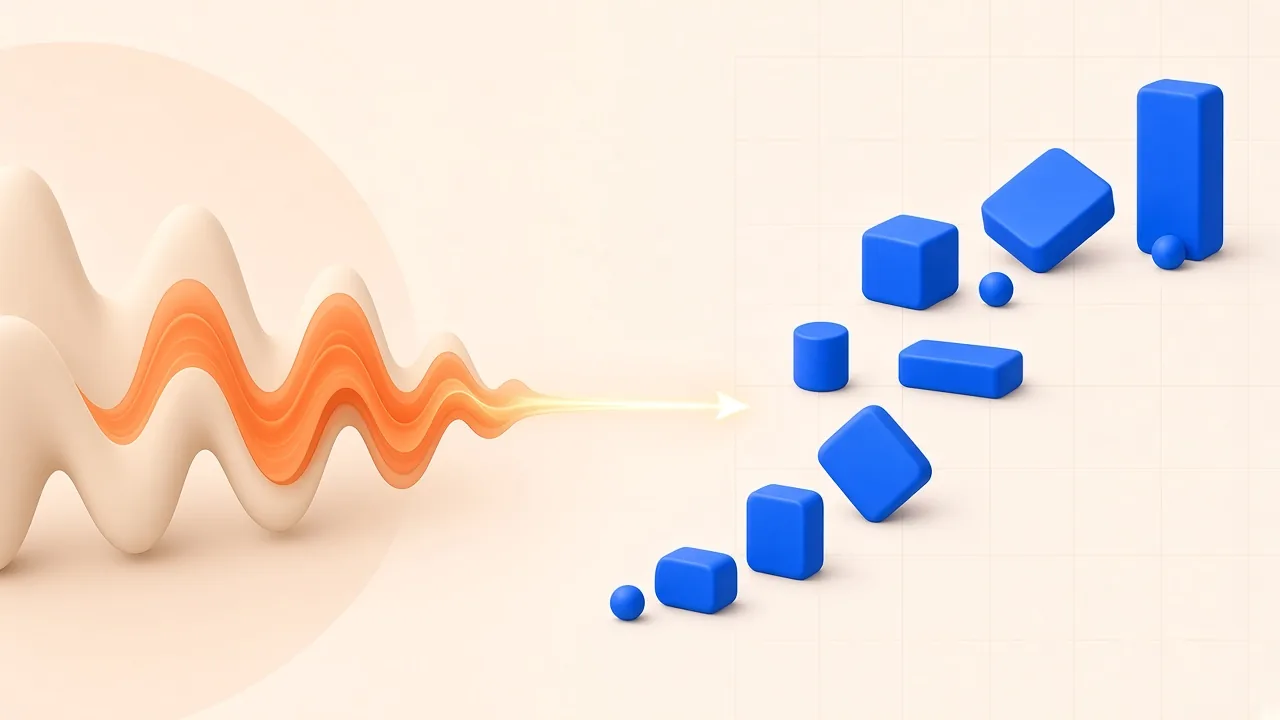
The export is an uncompressed stereo WAV. The live page does not advertise a bit-depth or sample-rate picker, and it does not offer 24-bit or 48 kHz options, so treat the file as a reference preview of timing and pitch rather than a delivery master with studio-format controls. If a later spec requires 48 kHz, resample in your DAW; raising the sample rate after the fact does not invent extra musical detail.
Length follows the MIDI: the renderer plays the events in the file, including tempo changes, and writes audio you can import without transcoding. Because one oscillator voice covers the whole sequence, a multi-instrument GM arrangement will not come back as piano on one track, bass on another and drums on a third. Drum notes in particular will sound as pitched tones on the chosen voice, not as a drum kit—mute or delete those parts in a MIDI editor before you bounce if they get in the way.
What Happens Inside the Browser Tab
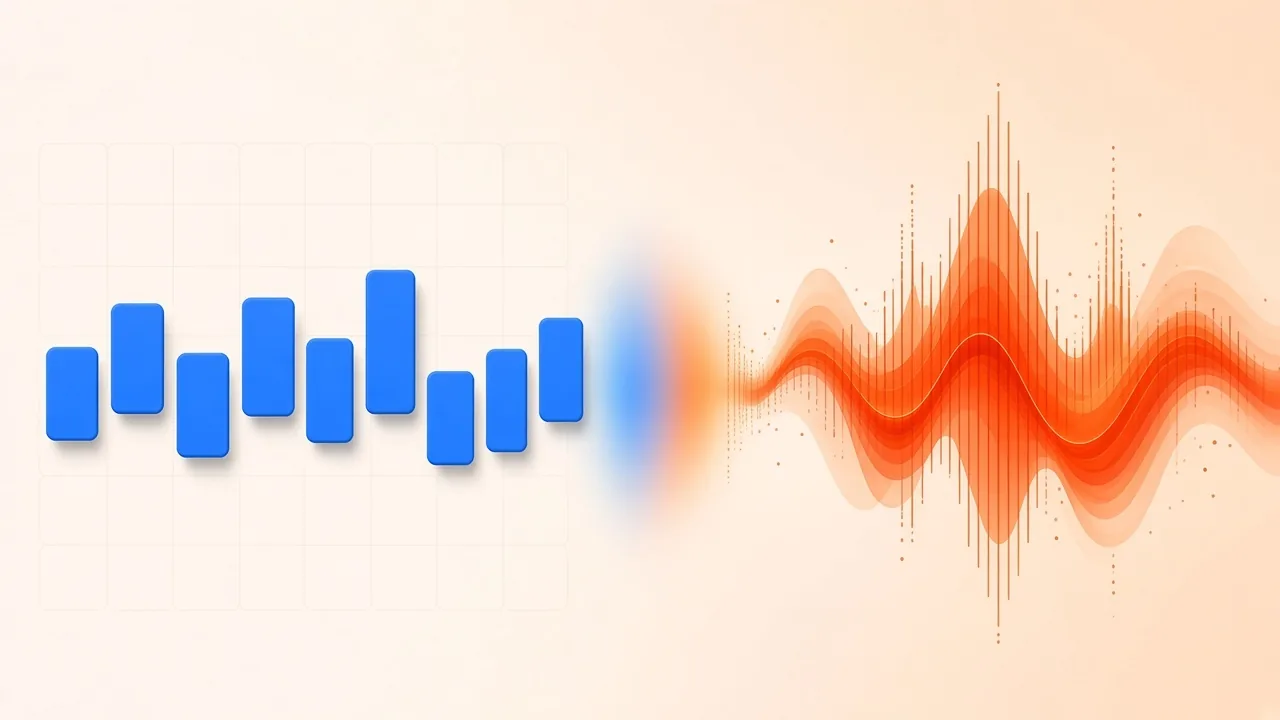
Under the hood the process matches what browsers already expose for offline rendering. A .mid file lists pitches, start times, tempo changes and velocities. SampLab Pro reads those events locally, the Web Audio engine synthesizes them with the selected oscillator, and the result is written as uncompressed stereo audio in local memory. MDN documents OfflineAudioContext as the standard way a page can render a buffer faster than real time without playing through the sound card; that is the class of API that makes an in-tab bounce possible at all.
There is no server round-trip for the MIDI data itself. Once the page is loaded, the file never has to leave the device for the render to finish. That also means the sound you hear is this synthesizer, not the piano plugin you used when you wrote the piece. If the WAV surprises you, the instrument changed—not the notes.
Everyday Uses for a MIDI-to-WAV Bounce
- Video editors who do not want to host a DAW on the cutting machine. Import the WAV onto the timeline; no SoundFont, no transcode step.
- Collaborators who cannot load your plugin chain. A WAV plays the same way everywhere, even if it will not match your sampled piano.
- A clean source for further processing. Add EQ, compression or reverb in a workstation from a lossless bounce rather than from a compressed listen file.
- Practice and teaching. Export the sketch and slow it down in a practice app. Starting from uncompressed PCM keeps stretching artifacts from compounding with MP3 damage.
- Archivists and game or media composers who need to audition a folder of sequences without setting up banks on every machine.
If the goal is readable notation rather than audible sound, skip the bounce and import the MIDI into a scorewriter. MuseScore's MIDI import handbook covers that path, and SampLab Pro’s lead-sheet generator can draft a printable page from the same .mid file. The companion explainer on MIDI versus audio is useful if you are still deciding which representation you actually need.
Limits You Should Plan Around
- Oscillator voices, not a GM bank. Piano-like, Synth and FM only. There is no sampled piano, no strings library, and no per-track program change.
- No CC, pitch bend, sustain pedal or expression. Mod-wheel curves and bent notes in the file are not reflected in the WAV.
- One voice for the whole file. You cannot assign track 1 to piano and track 2 to bass inside this renderer.
- No MP3 export. If you need a small listen file, convert the WAV later in an editor.
- Size and length caps. Files up to 50 MB, 10 minutes or 20,000 notes. Very long sequences belong in a DAW, or should be split first.
- Not a transcription tool. Dropping an MP3 or WAV onto this page will not work. To turn a recording into notes, use WAV to MIDI and the walkthrough in WAV to MIDI converter.
Only bounce MIDI you created or have permission to use. Rendering someone else's arrangement into audio and posting the WAV is still a use of their musical work; the converter does not grant that right.
Frequently Asked Questions
Do I need an account to render a file? No. The converter runs in your browser and you can download the WAV without signing in. Create an account only if you want to keep the result in your library.
Does the page upload my MIDI file? No. Parsing, timing and synthesis happen in the browser tab. The notes and the WAV stay in that session unless you choose to save a result.
Why doesn't the bounce match the piano I wrote with? The synthesizer changed, not the note list. MIDI carries no inherent timbre; the WAV reflects the oscillator voice you picked rather than the sampled piano or synth inside your session. Choose the closest of Piano-like, Synth or FM, or bounce again from the workstation when you need the real patch.
Can I export MP3, 24-bit audio, or 48 kHz? Not from this tool. It writes an uncompressed stereo WAV and does not offer those options. Convert or resample afterwards if a delivery spec requires it.
Do Type 0 and Type 1 files both work? Yes. Notes across channels are rendered together with the voice you chose into a single stereo file.
Can this page turn a recording into notes? No. Transcription belongs in WAV to MIDI or Audio to MIDI, then you can tidy pitches in the MIDI Editor.