Piano to sheet music
Piano Audio to Sheet Music: Both Hands from a Take
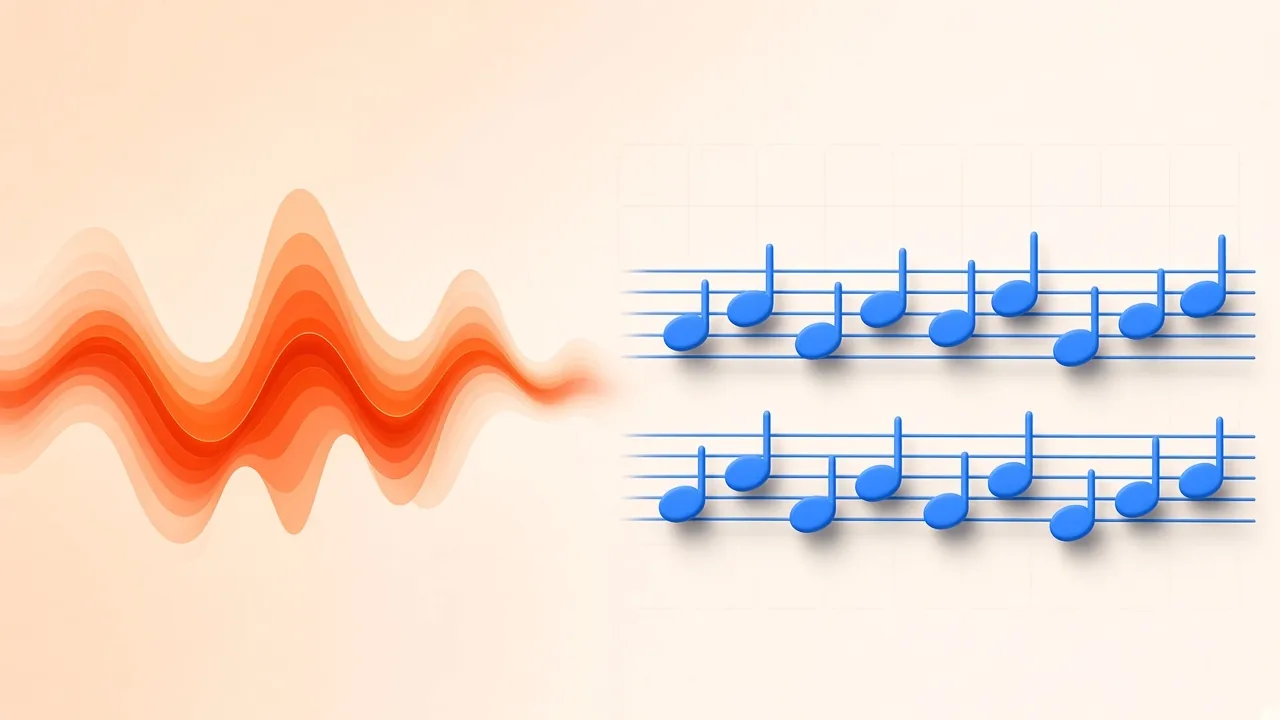
You played something worth keeping—an improvisation, a teaching demo, a weekend arrangement—and now you want both hands on the page. Piano audio to sheet music conversion is that bridge: software listens to the recording, estimates which keys went down and when, then places those guesses on a grand staff you can practice from, share with a student, or finish in a notation program.
This article stays inside the piano problem. For the multi-instrument overview (vocals, guitar tab, bass tab, full-song modes), use our companion guide on converting audio to sheet music. Here the focus is two-hand writing, pedal blur, bass octave mistakes, and a proofreading checklist that matches how pianists actually read.
What Conversion Is Really Doing
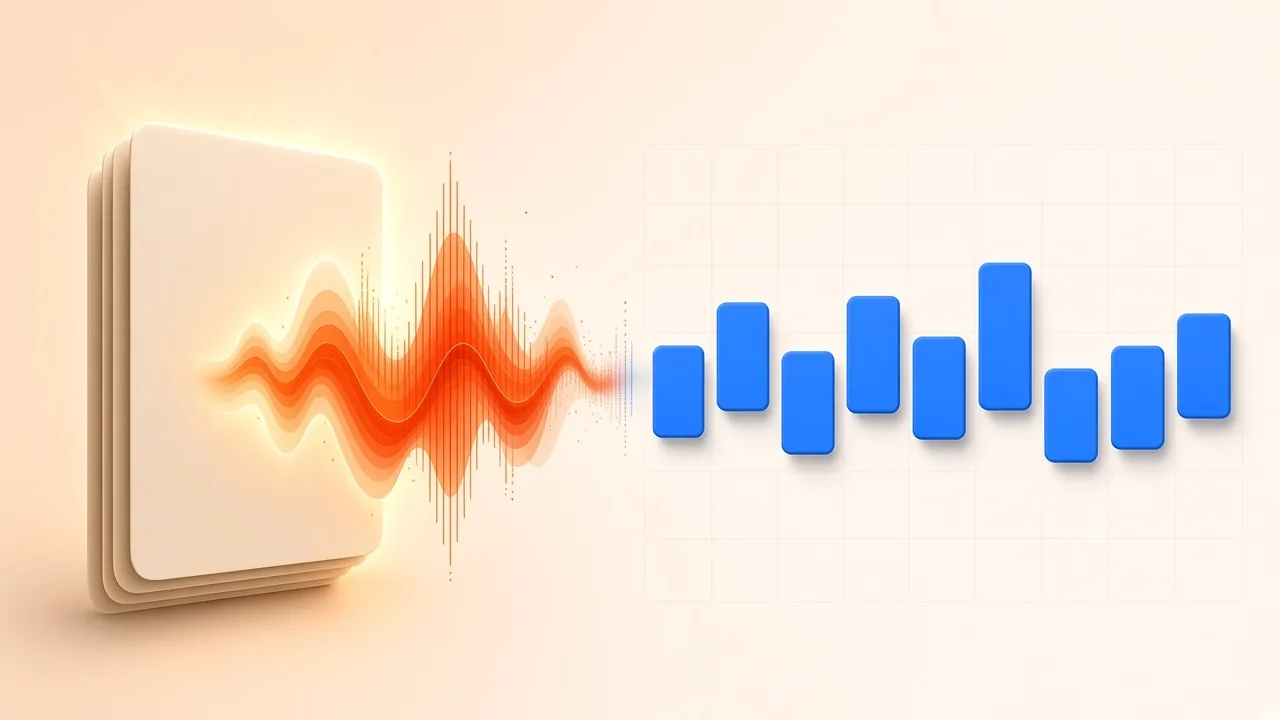
Sound on disk is just a waveform. Notation is a different language—pitches on staves, note values, barlines, key, and meter. Bridging them means solving two linked problems:
- Note detection. Estimate which pitches start and stop, and when. That list of timed notes is essentially what a Standard MIDI File stores.
- Engraving decisions. Snap timings to a beat grid, split notes between treble and bass staves, group measures, and spell accidentals that fit the key.
Modern piano research models often separate onset detection from frame-wise pitch tracking—Google Magenta's Onsets and Frames work is a clear example of that dual-objective design—because note starts carry most of the musical meaning. Large aligned corpora such as MAESTRO (about 200 hours of piano audio tightly paired with MIDI from the International Piano-e-Competition; paper on arXiv) exist because solo piano is hard enough to need dedicated benchmarks. Listener studies likewise find that onset-focused scores track human judgment of transcription quality better than many alternatives (TISMIR).
Knowing the split explains the errors you will see: wrong barlines come from beat guessing; octopus bass notes come from low overtones; shredded rhythms come from expressive timing the grid cannot name.
Step 1: Record So Transcription Has a Chance
Quality is capped by the take. A short checklist beats hours of cleanup:
| Factor | Favors a clean draft | Makes the model guess wrong |
|---|---|---|
| Texture | Piano alone in the take | Singing, kit, bass, or guitar fighting the keys |
| Room | Controlled space, short reflections | Background chatter, HVAC, long wash of echo |
| Mic distance | Near enough for hammer detail without clipping | Far across the room, or so close the peaks distort |
| Pedal | Pedal lifts that follow harmony changes | One long wash through unrelated chords |
| Tempo | A pulse you could tap steadily | Free timing with almost no shared downbeat |
| File | WAV or a high-bitrate MP3/M4A/FLAC/OGG | Phone video audio recompressed several times |
Reverberation can make even monophonic lines overlap into fake polyphony; dry, close takes are safer when note-level editing matters (Celemony Melodyne handbook). Trim talking, bench noise, and empty bars first—SampLab Pro's Audio Cutter exports a focused WAV without leaving the browser.
Only process recordings you own or have permission to use.
Step 2: Convert Piano Audio to Sheet Music in Piano Mode
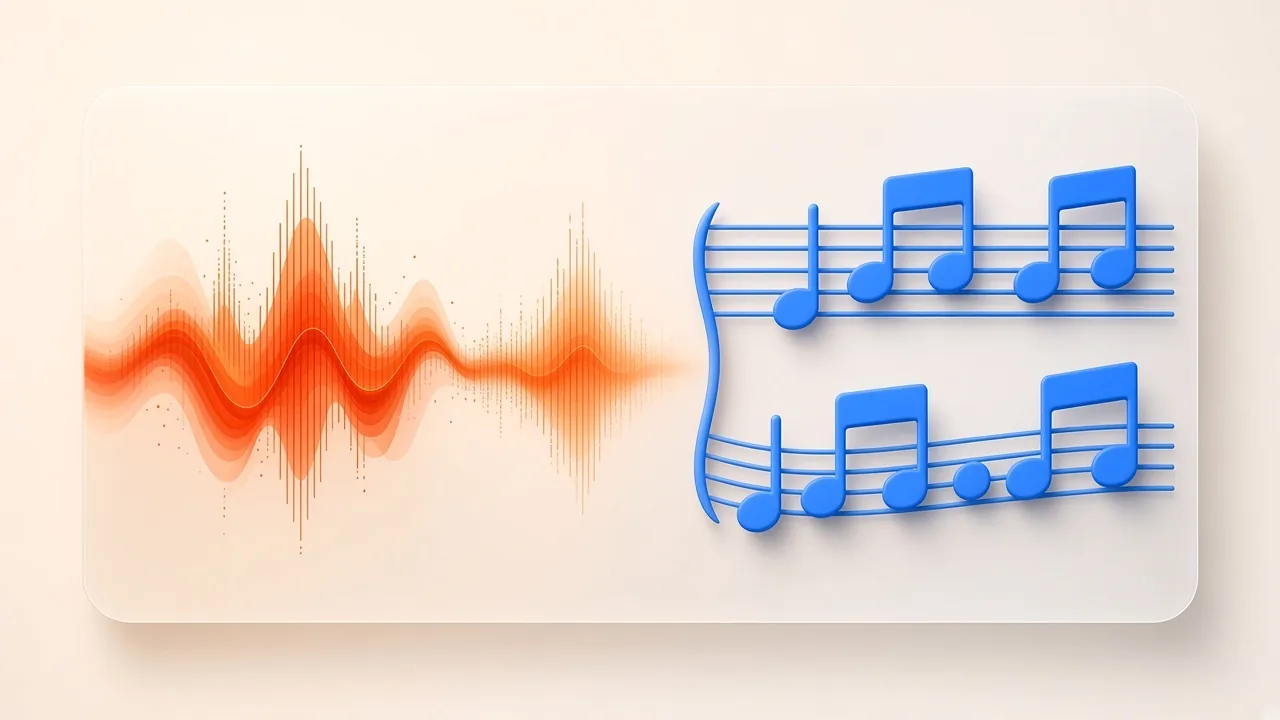
Open SampLab Pro's free Audio to Sheet Music tool and choose Piano. That mode is built for solo piano or a piano stem and writes two staves (right and left hand). Add MP3, WAV, M4A, FLAC, or OGG up to 10 minutes, or record with the microphone. Confirm rights, start the run, and wait for the draft. Models download once; the audio stays in the browser for that local transcription.
Play the score back with the on-page cursor, speed control, and loop. Ask three questions before you edit a single pitch: Is the meter sane? Is the key plausible? Do the hands look like how you played?
If the piano is buried in a band mix, isolate it first with the AI Stem Splitter (its Local 6 tracks mode can pull a piano stem and requires sign-in) or use Multi-instrument mode on the same Audio to Sheet Music page, which also requires sign-in. Piano mode on a single recording needs no account. Piano mode alone is not a miracle worker on a full production track.
Step 3: Pick Formats for Practice vs. Editing
| Format | Role | Open with |
|---|---|---|
| Print, share, mark with a pencil | Any PDF reader | |
| MusicXML | Edit notation, fix spelling, re-engrave | MuseScore and other scorewriters (MusicXML 4.0) |
| MIDI | Piano-roll edits, virtual instruments, DAWs | SampLab MIDI Editor or your DAW |
| Guitar Pro | Also available from the tool if you need GP workflows | GP-compatible editors |
MusicXML is the interchange format to open when you intend to fix the page. MuseScore's handbook notes that imports usually still need clean-up to match a hand-finished look (Working with MusicXML files), and you can re-export polished PDF/MusicXML/MIDI from there (File export). If you already have clean MIDI rather than audio, jump to MIDI to sheet music instead.
Step 4: Proofread Like a Pianist (Three Passes)
No automatic draft is a finished edition. Sit with the recording and the score, and separate concerns.
Pass 1 — Global frame
- Tempo and meter. A waltz trapped in 4/4, or a piece that looks twice as fast as it feels, is usually one global beat error.
- Key signature. Walls of accidentals often mean the wrong home key.
- Barline placement. Does beat one match the groove you feel?
Pass 2 — Pitches and octaves
- Bass octave errors. Strong low overtones can push left-hand notes up or down an octave. Check the lowest notes against the keyboard.
- Ghost notes. Short extras from sympathetic resonance or room noise.
- Missing inner voices. Thick chords hide middle tones; add them by ear when the harmony is incomplete.
Pass 3 — Hands, rhythm, and pedal lengths
- Staff assignment around middle C. Move notes so the page matches how your hands actually divide the texture.
- Over-precise rhythms. Expressive timing can explode a plain eighth into dotted fragments and ties. Rewrite those figures as the readable values a pianist would expect on the page.
- Sustain pedal. Automatic tools hear ringing energy, not pedal marks. Notes often appear shorter than they sounded under pedal—or, conversely, blurred into neighbors. Lengthen or tie notes the harmony should carry, then add pedal markings yourself in the notation app. Clean pedal changes while recording prevent most of this mess.
For piano-roll surgery on timings and velocities before you re-engrave, send MIDI to the MIDI Editor. For pitch-only capture without grand-staff layout, see audio to MIDI.
Step 5: Finish the Page
When pitches and rhythms are trustworthy, spend a short finishing pass on presentation:
- Mark dynamics and articulations yourself—the automatic draft will not invent a musical edition for you.
- Add pedal brackets wherever the performance depends on them.
- Pencil in fingerings for the awkward spots students always ask about.
- Give the piece a title, a composer or arranger line, and a clear tempo indication.
- From your notation app, write out a clean printable PDF once the edits settle.
Three Typical Situations
Teacher demo. Quiet phone take, steady tempo, melody over simple chords. Ideal case—mostly fingering and dynamics after the draft.
Improviser. Long free-tempo take with heavy pedal. Convert, then extract the best two minutes and simplify rhythms by hand.
Piano under a band. Automatic solo-piano tools drown in vocals and drums. Separate a piano stem first, or accept that ear transcription may still win for the densest bars.
Automatic Draft vs. Writing by Ear
| Question | Letting software sketch first | Writing every note yourself |
|---|---|---|
| How long to a usable draft? | Often minutes | Frequently hours or longer |
| Where it shines | Dry solo piano takes | Band mixes and odd textures |
| Musical decisions | Sparse—you still proofread | As deep as your listening skill |
| Ear-training payoff | Modest | Strong |
Most pianists combine both: let software sketch, then correct with the instrument under their hands.
Troubleshooting
| What you see | Probable reason | Practical fix |
|---|---|---|
| Swarm of speck-sized extras | Room noise or echo tails | Move the mic in, quiet the room, dry the take |
| Rhythms that look unreadable | Rubato or a vague pulse | Re-record steadier, or rewrite values by hand |
| Sustains cut off early | Pedal wash confusing offsets | Clearer pedal lifts while recording; extend ties in MusicXML |
| Left-hand pitches an octave off | Strong bass partials | Correct octaves on the staff or in the MIDI roll |
| Melody disappearing in spots | Other instruments masking it | Use a solo take or an isolated piano stem |
| Entire piece feels double- or half-time | Beat tracker locked on the wrong level | Adjust meter or rescale note values globally |
Hand Splits and the Middle-C Border
Grand-staff drafts often look “almost right” until you try to play them. Notes clustered around middle C may sit in the treble when your left hand played them, or the reverse. Move those pitches so each staff matches your physical division of the texture—readability beats a pedantic split that forces constant hand crossings on the page.
The same pass is where you catch rolled chords written as strict simultaneous attacks, and ornaments flattened into ordinary sixteenths. If the recording used a soft pedal or a half-pedal wash, do not expect the model to encode that nuance; notate the effect yourself after the pitches are stable.
If you want a higher-level walkthrough that also covers vocal melody and guitar/bass tab on the same tool, return to the audio to sheet music overview linked at the top of this guide. Keep this page for the piano-specific recording habits and proof passes.
Frequently Asked Questions
Can I turn a phone voice memo of piano into sheet music?
Yes, when the piano is clear, the room is fairly quiet, and the file is a supported format within the tool's length limit. Trim fluff first, run Piano mode, then proof the three passes above.
How accurate is piano audio to sheet music conversion?
Clean solo takes work best. Dense chords, heavy sustain, fast ornaments, and mixed bands raise the error rate. Plan to proofread—there is no honest shortcut past your ears.
PDF, MIDI, or MusicXML—which should I keep?
PDF to play and share. MusicXML to edit notation. MIDI for piano-roll and DAW work. Download more than one when you are unsure.
What about songs that are not solo piano?
Isolate the piano (stem split or Multi-instrument mode, both of which require sign-in for the six-track split) or transcribe difficult bars by ear. Piano mode expects a piano-forward signal.
Does my piano recording get uploaded?
No. Piano mode runs in your browser and your audio stays on your device; only the static model files are downloaded. The tool is free to use. Piano mode needs no account; sign-in is only required to save results or to use Multi-instrument mode. Always confirm you have rights to the audio.