MIDI to sheet music
MIDI to Sheet Music: How to Convert for Free

Converting MIDI to sheet music sounds like it should be a one-click job. After all, a MIDI file already knows every note, its pitch, and its timing. Yet anyone who has opened a raw MIDI file in notation software has seen the result: strange ties, thirty-second-note rests, accidentals spelled in the wrong key, and every note jammed onto one staff. This guide explains why that happens, how to prepare a MIDI file so it reads cleanly, and how to produce a free, printable lead sheet you can finish in a notation editor.
Why MIDI and Notation Do Not Line Up Perfectly
A MIDI file records performance data. It stores when each note starts, how long it lasts, how hard it was struck, and which channel it belongs to. It does not store musical intent. A performer might hold a note for 0.47 beats when the composer meant an eighth note. MIDI captures the 0.47; notation needs the eighth.
Several other things are missing or unreliable in a typical MIDI file:
- Spelling. MIDI knows note numbers, not names. Note 61 could be C-sharp or D-flat. Notation software has to guess from context.
- Key signature. Many files never set one, so it must be inferred.
- Articulation and dynamics. Staccato dots, accents, slurs, and dynamic markings are generally not encoded in a way notation programs can rebuild.
- Voices. If a piano part has a melody and accompaniment in the same hand, MIDI just sees overlapping notes.
- Tuplets. Triplets played slightly unevenly may be rounded to the nearest straight value.
Every converter, free or paid, has to make educated guesses about these. The cleaner your MIDI, the better those guesses become.
Two Kinds of Sheet Music You Might Want
Before converting, decide what you actually need, because it changes the best tool for the job.
A Lead Sheet
A lead sheet shows the melody on a single staff with chord symbols above it. It is the standard format for jazz standards, pop songbooks, and band rehearsals. Musicians read the melody and improvise accompaniment from the chord symbols. Lead sheets are compact, quick to read, and forgiving of imperfect MIDI because they leave out the accompaniment details.
A Full Score
A full score writes out every part: both hands of a piano, every instrument in an ensemble, every rhythm. It is what you need for classical repertoire, exam pieces, or arrangements where every note matters. Full scores demand much cleaner input and usually require more editing after conversion.
If you are a songwriter sharing a tune with a band, a lead sheet is usually the right choice. If you are a pianist preserving an improvisation exactly, you will want a full score and a notation editor.
Step 1: Clean Up the MIDI File

Ten minutes of preparation saves an hour of fixing notation. Open the file in SampLab Pro's free MIDI Editor, which lets you drag notes, change pitch, length, and velocity, undo changes, and download the result without logging in. Then:
- Delete stray notes. Tiny accidental notes, often a sixteenth or shorter, turn into clutter in notation.
- Fix obvious wrong pitches. A single wrong note becomes a confusing accidental.
- Straighten timing. Nudge notes that are slightly early or late onto the beat. Consistent note starts produce cleaner rhythms.
- Even out lengths. Notes meant to be held for a full beat should actually last a full beat, not 90 percent of one.
- Separate melody from accompaniment if you want a lead sheet. The melody should be clearly identifiable.
Step 2: Convert MIDI to Sheet Music (Lead Sheet)
With a tidy file, open SampLab Pro's MIDI to Sheet Music tool. It converts MIDI into a lead sheet draft with chord symbols. From there you can print the page or export MusicXML.
Print is great for rehearsal tonight. MusicXML is the more powerful option, because it is a widely supported interchange format for notation. Open the file in your notation program of choice to adjust spelling, add lyrics, dynamics, and articulation, change the layout, and produce a polished PDF.
Like any of SampLab Pro's browser tools, it is free and does not use credits.
Step 3: Finish in a Notation Editor
Treat the generated lead sheet as a first draft. The most common finishing touches are:
- Respelling accidentals to match the key (for example, changing A-sharp to B-flat in F major).
- Checking chord symbols against what you hear. Automatic chord labeling is a starting point.
- Fixing rhythms that were rounded oddly, especially triplets and swing.
- Adding expression: dynamics, articulations, repeat signs, and section labels.
- Adding lyrics under the melody if it is a song.
Starting From a Recording Instead of a MIDI File
What if you have only audio, such as a voice memo or a recording of a piano piece? Convert it to MIDI first. SampLab Pro's free Audio to MIDI tool transcribes melodies and solo instruments using the open-source Basic Pitch model, entirely in your browser. For a part inside a full song, separate it first with the AI Stem Splitter, which costs 36 credits per job, then send the stem on to WAV to MIDI.
Audio-derived MIDI almost always needs the cleanup from Step 1, so build that time into your plan.
Hearing Your MIDI Before You Notate It
It is surprisingly easy to notate a wrong note because you never listened carefully. Before finalizing your sheet music, render the MIDI to audio with SampLab Pro's MIDI to WAV tool, which uses built-in instrument sounds to produce a stereo WAV. Listening back while following the score is a quick proofreading pass.
What a Good Lead Sheet Contains
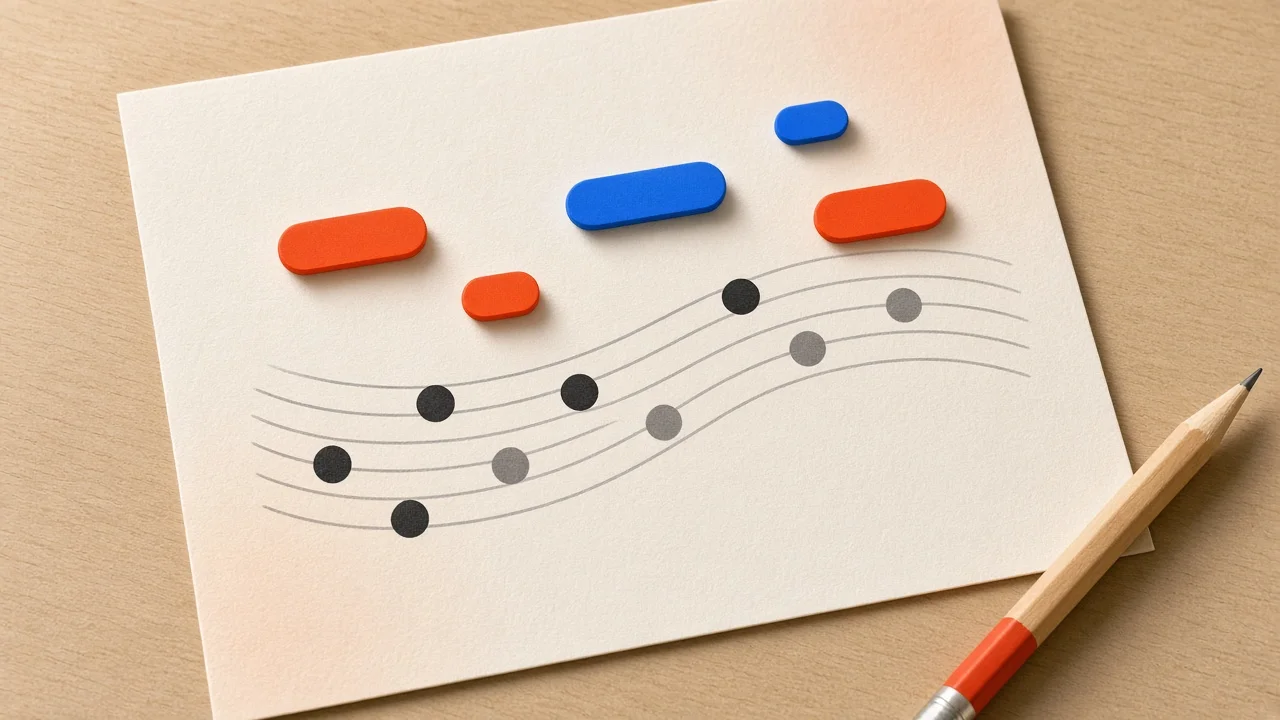
Whether you generate it or write it by hand, a usable lead sheet usually includes the same core elements. Use this as a checklist when you review the draft:
- Title and composer or songwriter credit at the top.
- Tempo and style indication, such as "Medium swing" or a metronome mark, so players know the feel.
- Key signature and time signature at the start of the first system.
- The melody on a single staff, with clear rhythms.
- Chord symbols above the staff, placed where each change happens.
- Section labels and repeats, such as Verse, Chorus, Bridge, first and second endings, and a coda if needed.
- Lyrics under the melody for vocal songs.
If any of these are missing from your draft, add them in your notation editor before printing.
Proofreading Your Sheet Music
Generated notation deserves the same proofreading as typed text. A quick routine:
- Play or render the MIDI while following the page with your eyes, bar by bar.
- Count every bar. Each one should add up to the time signature. Odd totals usually mean a rounding issue.
- Check the first and last notes of each phrase. Pickup notes and held endings are where timing errors hide.
- Sing or play the melody from the page alone. If you stumble, a reader will too.
- Ask a second musician to sight-read it before you hand copies to a whole band.
Common Problems and Quick Fixes
- Dozens of tiny rests: the note lengths are uneven. Extend notes to fill the beat in the MIDI Editor.
- Too many accidentals: the key may be wrong or notes are misspelled. Respell in your notation editor.
- Unreadable rhythms: the performance was loose. Tighten timing before converting.
- Wrong chord symbols: the harmony may be ambiguous or the bass may be on an inversion. Correct by ear.
- Everything on one staff: for piano, you will need to assign notes to treble and bass staves in a full notation program.
A Short Example
Say you played a melody into your DAW on a MIDI keyboard while writing a song. You want to bring a lead sheet to band practice. You export the MIDI, open it in the MIDI Editor, delete two accidental grace notes, snap the first note of each phrase to the beat, and trim a couple of overlapping notes. Then you run it through MIDI to Sheet Music, which produces a lead sheet draft with chord symbols. You export MusicXML, open it in a notation program, add the lyrics under the melody, fix one chord symbol your guitarist would argue about, and print. The band has something readable in under half an hour.
Frequently Asked Questions
Is the SampLab Pro MIDI to Sheet Music tool free?
Yes. It is a free browser tool that does not use credits.
What output formats can I get?
You can print the lead sheet draft or export it as MusicXML for further editing in notation software.
Does it create a full piano score?
It creates a lead sheet draft with chord symbols. For a fully engraved multi-staff score, export MusicXML and finish the arrangement in a notation editor.
Why does my converted sheet music look messy?
MIDI stores performance timing, not written rhythm. Cleaning up note starts, lengths, and stray notes before conversion makes a big difference.
Can I convert an MP3 to sheet music?
Not directly. Convert the audio to MIDI first with Audio to MIDI or WAV to MIDI, clean it up in the MIDI Editor, then generate the lead sheet.
Will dynamics and articulations appear?
Generally not, since typical MIDI files do not carry them in a notation-friendly form. Add them in your notation editor.
What is MusicXML?
MusicXML is an open, widely supported file format for exchanging sheet music between notation programs. Exporting MusicXML lets you continue editing the lead sheet in your preferred notation software rather than starting over.